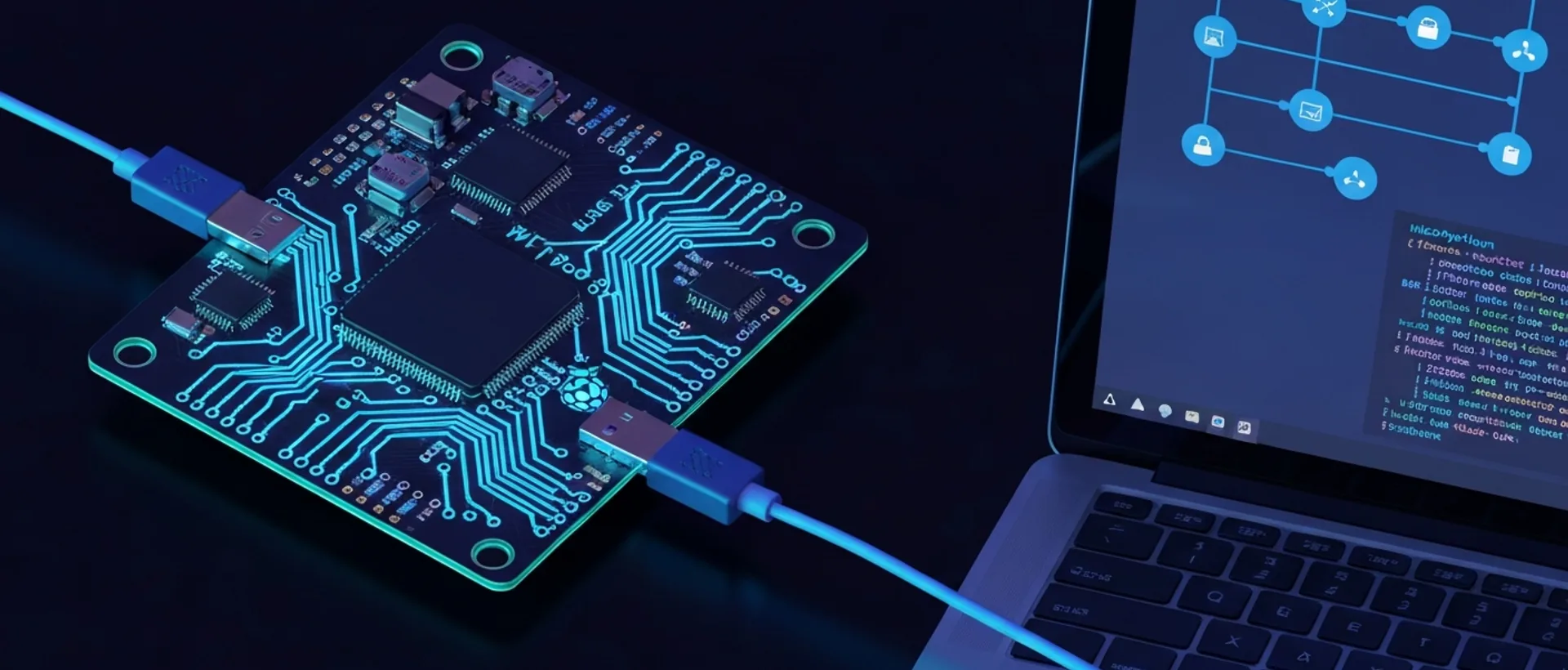
What is it and How Does the Raspberry Pi Pico W Work as a Wi-Fi Adapter?
Hey there, DavitAI folks! Today we’re going to talk about one of those tricks that makes you feel like a real hacker, but for good, you know? In 2026, the Raspberry Pi Pico W continues to be a great choice for anyone who enjoys getting hands-on with IoT and embedded projects [accio.com]. But what you might not know is that this little board, which is one of the best-selling microcontrollers, can turn into a driverless USB Wi-Fi adapter, like a Swiss Army knife of connectivity!
The magic happens because of the CYW43439 chip embedded in the Pico W. It’s responsible for boosting your project with 2.4 GHz Wi-Fi (802.11n standard), which is already quite useful [ultraturbo.com.br]. By programming the Pico W with specific firmware, usually in MicroPython, we can make it pretend to be a network device. It’s like it tells your computer: “Hey, I’m here to give you wireless internet, no problem!” and routes Wi-Fi traffic to your machine via USB.
The big advantage of this functionality is its versatility and low cost. Just think: you have that old PC that doesn’t have Wi-Fi, or an embedded project that needs connectivity but doesn’t have space for an extra module. The Pico W comes to the rescue! It’s a very popular alternative, like the ESP32 and Arduino, for being affordable and easy to use [accio.com]. Programming flexibility is the gold here, allowing you to customize the connection for various network needs. For those who want to dive deeper, check out how the Raspberry Pi Pico W can become a hassle-free USB network adapter: Discover: Raspberry Pi Pico W Wi-Fi USB: Network Adapter.
Essential Prerequisites for Pico W Setup
Alright, the idea is cool, but before you start plugging things in and expecting magic, we need to lay the groundwork. It’s not rocket science, but there are some key prerequisites for everything to go smoothly. After all, nobody wants to get frustrated over a small detail, right?
First, the obvious: you’ll need your beloved Raspberry Pi Pico W and a micro USB to USB-A cable. And, of course, a computer – it can be Windows, macOS, or Linux, the Pico W doesn’t discriminate against anyone. The most important thing is that your Pico W already has the MicroPython interpreter installed. If not, relax, the process is super smooth and there are tons of tutorials out there. It’s like installing a new program, but on your little board.
[!CALLOUT tipo=“dica”] Always use a good quality USB cable! Cheap, generic cables can cause intermittent connection problems and make you pull your hair out thinking the problem is with the code or the board. Believe me, I’ve been there!
For programming, you’ll need an IDE (Integrated Development Environment), and Thonny is everyone’s favorite for MicroPython. It’s simple, intuitive, and gets the job done without fuss. As for technical knowledge, a basic understanding of Python and how networks work helps a lot, but it’s not mandatory. This article will guide you through each step, like a good friend who has your back. Just don’t forget to check if your operating system recognizes the Pico W just fine, but in most cases, USB drivers are installed automatically. If not, then we’ll think about what to do.
Step-by-Step: Turning your Pico W into a USB Wi-Fi Dongle
Now that we know what we need, it’s time to get hands-on and turn your Pico W into the connectivity hero! Follow this guide, you can’t go wrong, I promise it’s easier than assembling IKEA furniture.
- Installing MicroPython on Pico W: First, disconnect the Pico W from your computer. Then, reconnect it, but this time, keep the BOOTSEL button pressed while plugging it into the USB port. It will appear as a storage device on your PC, like a USB stick. Now, just drag the MicroPython UF2 file into this “USB stick” and you’re done! The Pico W will restart and will already have MicroPython on board.
- Setting up the Development Environment: Open the Thonny IDE on your computer. Go to Tools > Options > Interpreter and select “MicroPython (Raspberry Pi Pico)”. Make sure the correct port is selected (it usually detects automatically). Click “OK” and Thonny should connect to your Pico W. If it doesn’t connect, try restarting Thonny or even your computer.
- Programming the Pico W as a Wi-Fi Client: Now comes the code part. We need to tell the Pico W how to connect to your Wi-Fi network and how to share that connection. The code below is a basic example to get you started. Copy and paste into Thonny and save as main.py on your Pico W.
- ```python
- import network
- import socket
- import time
- import usb_cdc
# Wi-Fi settings
SSID = 'YOUR_SSID_HERE'
PASSWORD = 'YOUR_PASSWORD_HERE'

# Function to connect to Wi-Fi
def connect_to_wifi():
    wlan = network.WLAN(network.STA_IF)
    wlan.active(True)
    wlan.connect(SSID, PASSWORD)

    max_wait = 10
    while max_wait > 0:
        if wlan.status() < 0 or wlan.status() >= 3:
            break
        max_wait -= 1
        print('waiting for connection...')
        time.sleep(1)

    if wlan.status() != 3:
        raise RuntimeError('network connection failed')
    else:
        print('connected')
        status = wlan.ifconfig()
        print('ip = ' + status[0])
        return wlan

# Initialize CDC-NCM for USB network function
def enable_usb_network():
    usb_cdc.enable(console=True, data=True)
    # The Pico W will appear as a USB network device
    # on your computer, usually as a CDC-NCM.

try:
    wlan = connect_to_wifi()
    enable_usb_network()
    print("Pico W configured as USB Wi-Fi adapter. Waiting for PC connection.")
    # Infinite loop to maintain connection
    while True:
        time.sleep(1)
except RuntimeError as e:
    print(f"Error: {e}. Check Wi-Fi credentials and try again.")

```
**Important:** Replace `'YOUR_SSID_HERE'` and `'YOUR_PASSWORD_HERE'` with your Wi-Fi network details, okay? Save the file as `main.py` directly on the Pico W so it runs automatically when powered on.
4. Enabling Connection Sharing on PC: This is the part many people forget. On your computer, after the Pico W is recognized as a USB network adapter (usually as a CDC-NCM device), you need to configure connection sharing. On Windows, for example, go to “Network and Internet Settings,” then “Change adapter options.” There, you will see the Pico W as a new local connection. Right-click on your main internet connection (Wi-Fi or Ethernet), go to “Properties,” then the “Sharing” tab, and enable “Allow other network users to connect through this computer’s Internet connection.” Select the Pico W connection from the dropdown list. On Linux, the process is similar, using tools like
nm-connection-editororsystemd-networkd. 5. Testing Connectivity: With everything configured, it’s crunch time! Open your browser and try to access a website. If the Pico W is doing its job correctly, your computer will have internet access through it. Congratulations, you’ve just given new life to your PC or project!
Advantages and Limitations of the Pico W as a Wi-Fi Adapter
Look, using the Pico W as a Wi-Fi adapter is awesome, but like everything in life, there are two sides to the coin. There’s no silver bullet, right? But let’s be honest, the balance is quite positive for those who enjoy innovating.
The advantages are crystal clear: first, the cost. It’s a very cheap solution, especially if you already have a spare Pico W [accio.com]. Second, programming flexibility is a huge differentiator. You’re not stuck with a generic driver or limited functionalities. You can customize everything, from how it connects to how it shares the network. This is gold for embedded projects and for boosting computers without Wi-Fi. And, as a bonus, learning to program the Pico W for this purpose expands your IoT and networking skills in ways you can’t even imagine. It’s like gaining a superpower! In fact, for those who enjoy the platform, the Raspberry Pi Pico 2 W, which comes with the RP2350 microcontroller and integrated Wi-Fi and Bluetooth 5.2, promises to be one of the best-selling in 2025, further boosting the ecosystem [accio.com].
But, of course, there are limitations. Speed, for example, might not be the same as a dedicated high-performance Wi-Fi adapter. After all, we’re talking about a microcontroller with a more basic USB interface (USB 1.1), not a chip specifically designed for maximum throughput. If you need ultra-fast internet to download huge games in seconds, it might not be the best option. Another point is that the initial setup requires a certain level of technical knowledge and a dose of patience to program and configure sharing. It’s not entirely “plug and play,” which can be a barrier for less experienced users. And, on older operating systems, there might be some driver compatibility issues, requiring manual adjustments.
Despite these limitations, the Wi-Fi chipset market is booming, valued at US$22.75 billion in 2025 and expected to reach US$24.09 billion in 2026 [futuremarketinsights.com]. This shows that wireless connectivity is a priority, and solutions like the Pico W, even with their peculiarities, have their place in the sun.
Common Troubleshooting and Optimization Tips
We know that not everything is rosy in the world of technology. Sometimes, we encounter issues that make us want to throw everything away. But calm down, take a deep breath, because most problems with the Pico W as a Wi-Fi adapter have a solution. And even better, there are some tips to make the experience even smoother.
Problem: “My Pico W doesn’t show up in Thonny! Does it hate me?” Solution: First, check the USB cable. Seriously, most problems are due to the cable. Try another one, preferably a good quality one. If it persists, restart Thonny, or even your computer. Sometimes, the operating system gets a bit lost, and a reboot solves it.
Problem: “I can’t connect to the Wi-Fi network, what should I do?” Solution: Two basic things: check your network credentials (SSID and password) in your code. A typo is more common than it seems! And see if the Pico W isn’t too far from the router. Weak signal is a recipe for a headache.
Problem: “The Wi-Fi connection is so slow, it feels like dial-up!” Solution: Here, we have to be realistic. The Pico W is not a high-performance Wi-Fi adapter. But you can optimize the code to reduce overhead, and position the Pico W in a place with a good signal. Remember the hardware limitations, it’s a microcontroller, not a gaming router. Oh, and we’re talking about a scenario where the shortage of memory chips is expected to worsen in 2026, due to AI demand, which could impact the price and availability of components [exame.com]. So, getting the most out of what you have is essential.
Optimization Tip: Keep your MicroPython firmware and Pico W libraries always updated. Updates usually bring performance, security, and bug fixes. It’s like keeping your car’s maintenance up to date, you know?
Advanced Tip: Have you ever thought about using the Pico W as an access point (AP) instead of just a client? This opens up a huge range of possibilities for projects, turning your little board into a mini router. Imagine creating your own isolated network for your IoT devices! Wi-Fi 7, for example, is coming strong, promising higher speed and lower latency [sitesurveywireless.com.br]. And some are already talking about Wi-Fi 8 for 2026, focused on reliability and low latency in crowded environments [networkworld.com]. So, exploring these new technologies with the Pico W can be a huge differentiator.
And that’s it, folks! The Raspberry Pi Pico W, even in a challenging market scenario for electronics in 2026, with chip shortages and price increases [tecnoblog.net], continues to be a powerful and versatile tool for those who want to innovate. With a little patience and knowledge, it can become a functional and super useful USB Wi-Fi adapter. Let’s code!
Sources
- https://www.accio.com/business/trending-raspberry-pi-2025 — Trending Raspberry Pi 2025 ↩
- https://ultraturbo.com.br/tendencias-em-conectividade-para-2026-o-que-esperar-da-internet-no-brasil/ — Connectivity Trends for 2026: What to Expect from the Internet in Brazil? ↩
- https://www.accio.com/business/best-raspberry-pi-alternative — Best Raspberry Pi Alternative ↩
- https://www.futuremarketinsights.com/reports/wi-fi-semiconductor-chipset-market — Wi-Fi Semiconductor Chipset Market ↩
- https://exame.com/tecnologia/escassez-de-chips-de-memoria-deve-piorar-em-2026-alertam-empresas/ — Memory chip shortage expected to worsen in 2026, companies warn ↩
- https://odins.es/pt-pt/blogue/wifi-7-novo-padrao-wifi-e-seu-impacto-na-conectividade/ — WiFi 7: the new WiFi standard and its impact on connectivity ↩
- https://sitesurveywireless.com.br/novas-tecnologias-wi-fi-proximos-2-anos/ — New Wi-Fi technologies: next 2 years ↩
- https://www.networkworld.com/article/4112600/wi-fi-8-in-2026-next-gen-wireless-standard-prioritizes-reliability-over-speed-gains.html — Wi-Fi 8 in 2026? Next-gen wireless standard prioritizes reliability over speed gains ↩
- https://tecnoblog.net/noticias/escassez-de-chips-celulares-e-notebooks-devem-ficar-mais-fracos-em-2026/ — Chip shortage: cell phones and notebooks expected to get weaker in 2026 ↩
Read next
- SSH Tunnel Port Forwarding: Essential Guide for 2026
- Office Mac Read-Only: Unlock & Edit Your Files Now
Ready to scale this idea?
Narratron turns topics like this into retention-optimized YouTube scripts in under 2 minutes — magnetic hook, structure, complete SEO, timestamped description and thumbnail prompt ready to ship. 50 free credits, no card required.